
Scrolling columns creates a visual story from two moving image columns and optional supporting copy. Use it for a process, collection mood, or brand story where the images should remain in motion while visitors read.
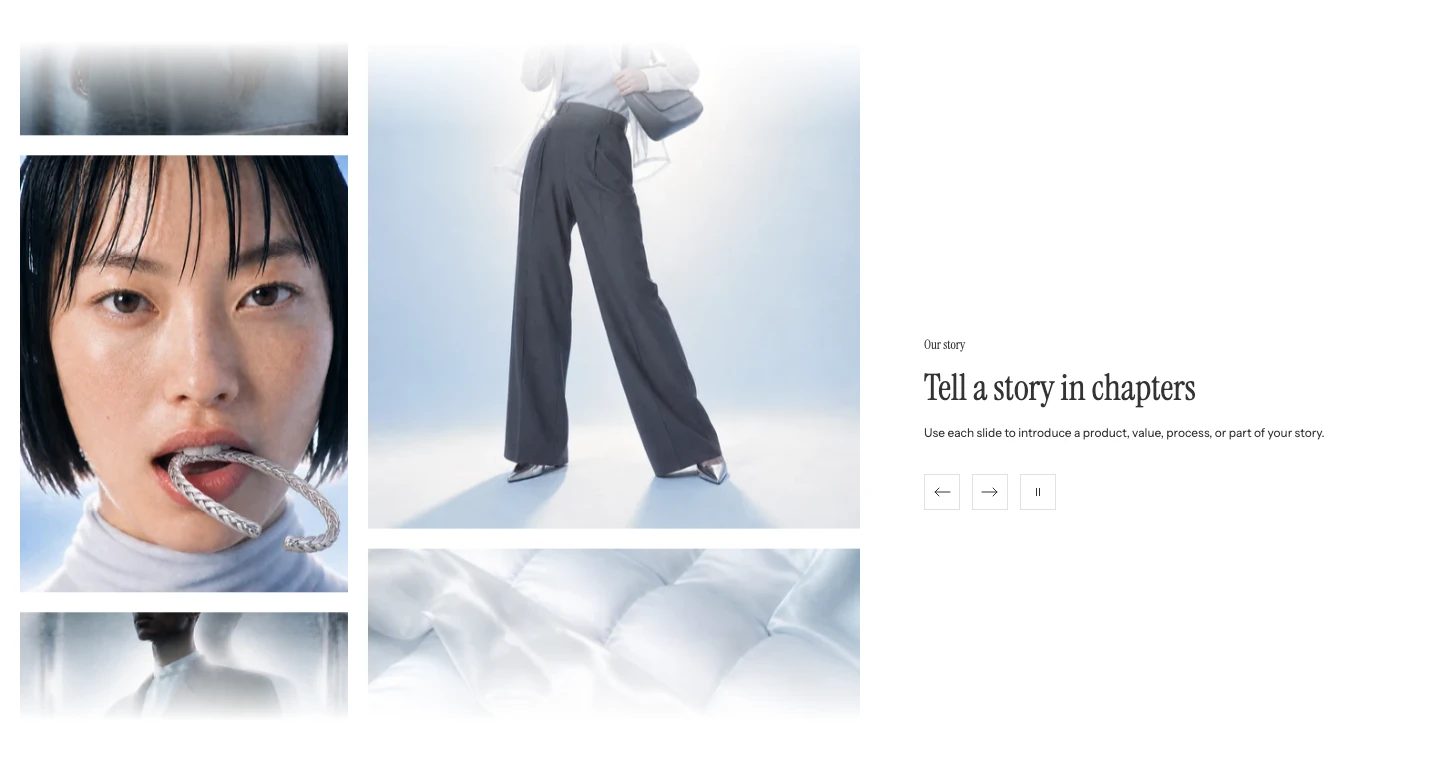
Scrolling columns on desktop.
Add Scrolling columns
In Shopify's theme editor, add Scrolling columns to a compatible template. A new section starts with five Image blocks and one completed text group.
Text groups
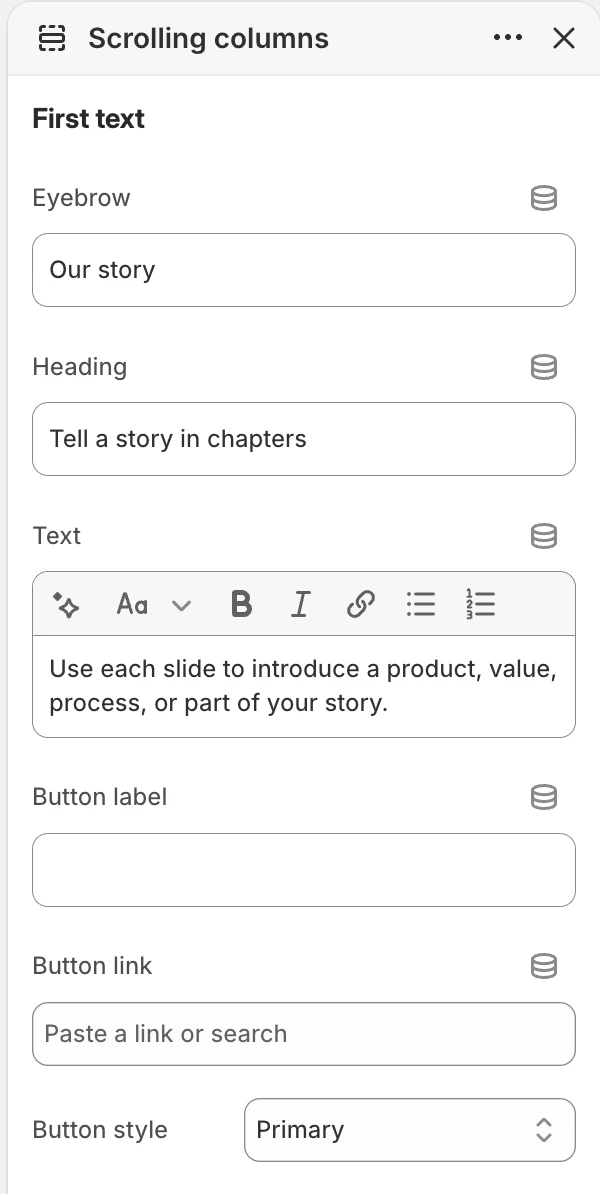
The First text group in the Theme Editor. The values shown are examples, not defaults.
The section provides First text, Second text, and Third text. Each group can include Eyebrow, Heading, Text, Button label, Button link, and Button style. Button styles are Primary, Secondary, and Text link.
Only text groups that contain copy or a complete button are shown. When two or three groups are complete, visitors can move between them with previous and next controls.
Layout
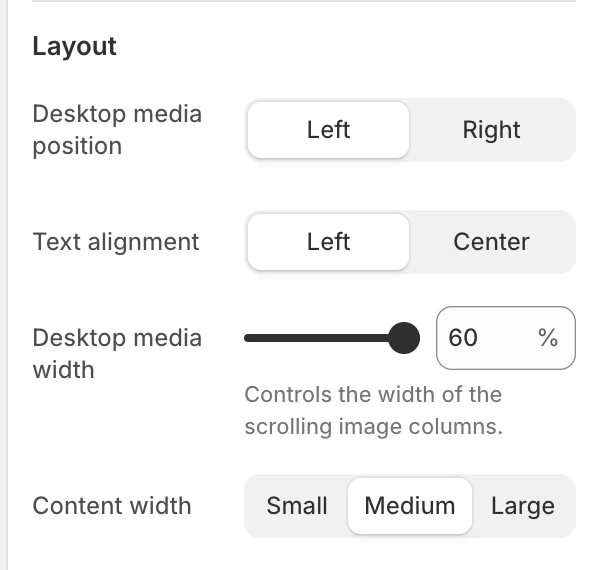
The Layout group in the Theme Editor.
| Setting | What it controls | Options or default |
|---|---|---|
| Desktop media position | Places the moving image columns to the left or right of the copy. | Left or Right. Default: Left. |
| Text alignment | Aligns the supporting copy. | Left or Center. Default: Left. |
| Desktop media width | Sets the width of the image area. | 40%–60%, in 1% steps. Default: 50%. |
| Content width | Sets the readable width of the text groups. | Small, Medium, or Large. Default: Medium. |
If every text group is empty, the images use the available section width without leaving an empty text column.
Motion and controls
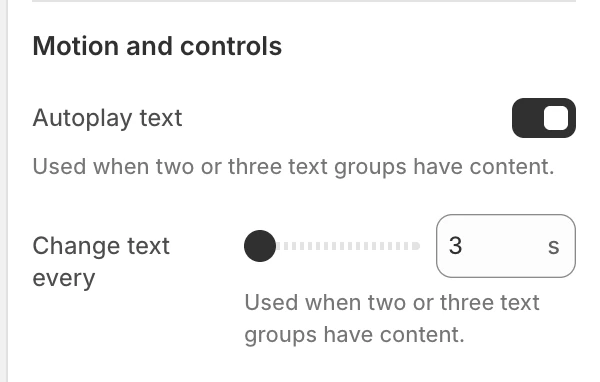
The Motion and controls group in the Theme Editor.
| Setting | What it controls | Options or default |
|---|---|---|
| Autoplay text | Advances between completed text groups automatically. | Enabled by default. Used when two or three groups contain content. |
| Change text every | Sets the time before the next text group appears. | 3–12 seconds. Default: 5 seconds. Shown when Autoplay text is enabled. |
The image columns move continuously whether or not text autoplay is enabled. When more than one text group is present, visitors can use previous and next controls; a pause/play control appears when autoplay is on. Selecting Pause stops both the text changes and the two image columns until the visitor selects Play. Reduced-motion preferences stop automatic movement while keeping the content available.
Colors
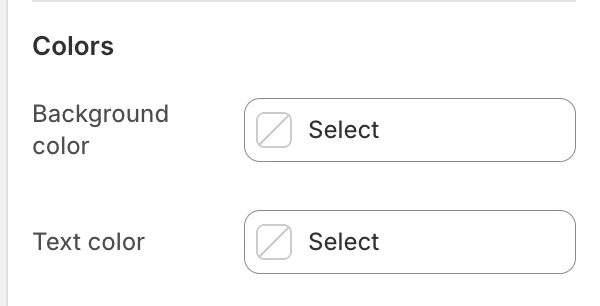
The Colors group in the Theme Editor.
Background color and Text color override the inherited theme colors for this section. Leave them blank to inherit Theme settings > Colors > General.
Spacing
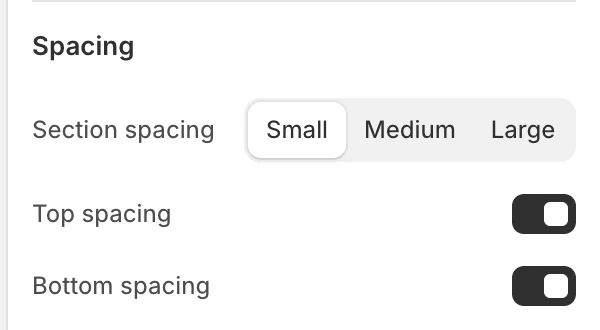
The Spacing group in the Theme Editor.
Section spacing, Top spacing, and Bottom spacing control the space around the section. The default spacing is Medium with both edges enabled.
Image blocks
Image block settings.
Add up to 10 Image blocks and reorder them to change the sequence. Each block contains one Image setting. Use similarly balanced portrait and landscape images so neither moving column feels visually heavy.
Desktop and mobile behavior
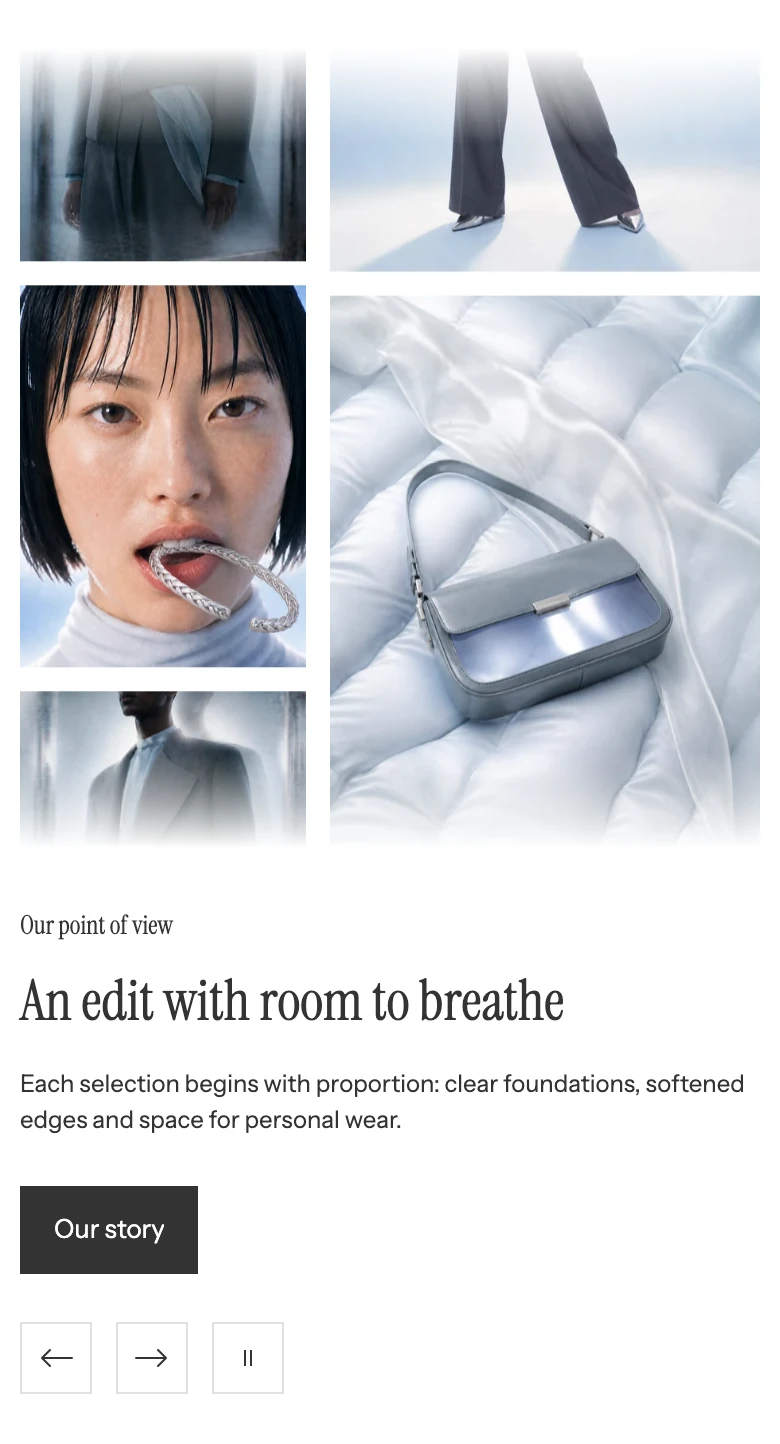
On mobile the image columns sit above the text.
Desktop uses the selected media position and width. On smaller screens, the layout stacks while keeping the image sequence and active text usable. Review all text groups, the longest button label, and the full image loop in Shopify's desktop and mobile previews.
Common issues
| Symptom | Safe check |
|---|---|
| Text controls are missing | Complete at least two text groups. Empty groups are not included. |
| The text does not change automatically | Enable Autoplay text, complete more than one text group, and check the visitor's reduced-motion preference. |
| The image area feels too narrow | Increase Desktop media width, or leave all text groups empty for a media-only layout. |